Install PosherVA on your phone, like an app
Install PosherVA on your phone, like an app
You can give PosherVA its own icon on your phone, next to your other apps. Tap the icon and PosherVA opens full screen, like an app. From there you can see what it did today, turn automations on and off, and change your settings.
- Nothing to download. You add it straight from your phone's browser. It takes less than a minute.
- It's the same PosherVA you use on your computer, with the same account and the same settings.
- Your automations keep running either way. They run on our servers, so you don't need to keep the app open, or even open it every day. The icon just makes PosherVA easy to find.
The easiest way: let PosherVA show you
PosherVA knows which phone you have and shows you the steps for it, with a little moving picture of where to tap.
- On your phone, open cloud.posherva.com and sign in.
- Tap Account.
- Under Settings, tap Install the app.
- Follow the steps on your screen. Keep the steps open while you tap: the button you need is in your browser's bar, at the top or the bottom of the screen.
You may have seen this already: in your first few days, PosherVA offers to add itself when you open it on your phone.
On an Android phone you may see an Install app button instead of steps. Tap it, then tap Install. That's all.
If you'd rather follow along here, find your phone below.
Find your phone
First, which browser are you using? On an iPhone it's usually Safari, on most Android phones Chrome, and on many Samsung phones Samsung Internet.
- iPhone with Safari, and a round ••• button at the bottom right of the screen: see iPhone (Safari).
- iPhone with Safari, and a Share button (a square with an arrow) in the middle of the bottom bar: see iPhone (Safari, Share at the bottom).
- iPhone with Chrome: see iPhone (Chrome).
- Android phone with Chrome: see Android (Chrome).
- Samsung phone with Samsung Internet: see Samsung Internet.
- iPad: see iPad.
iPhone (Safari)
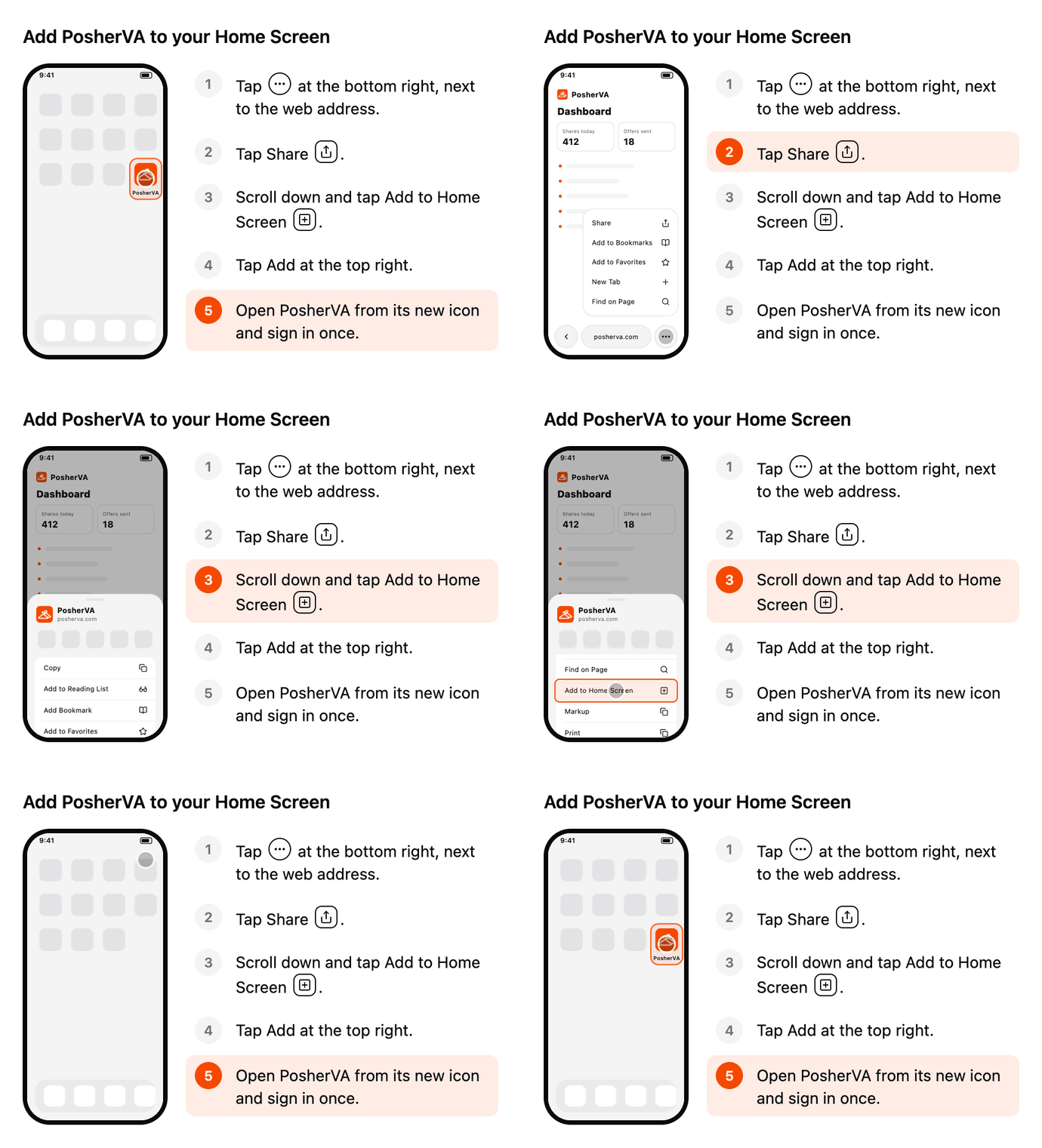
- Tap the round ••• button at the bottom right, next to the web address.
- Tap Share.
- Scroll down and tap Add to Home Screen.
- Tap Add at the top right.
- Open PosherVA from its new icon and sign in once.
Already see Share in your bar? Tap it and skip to step 3.
iPhone (Safari, Share at the bottom)
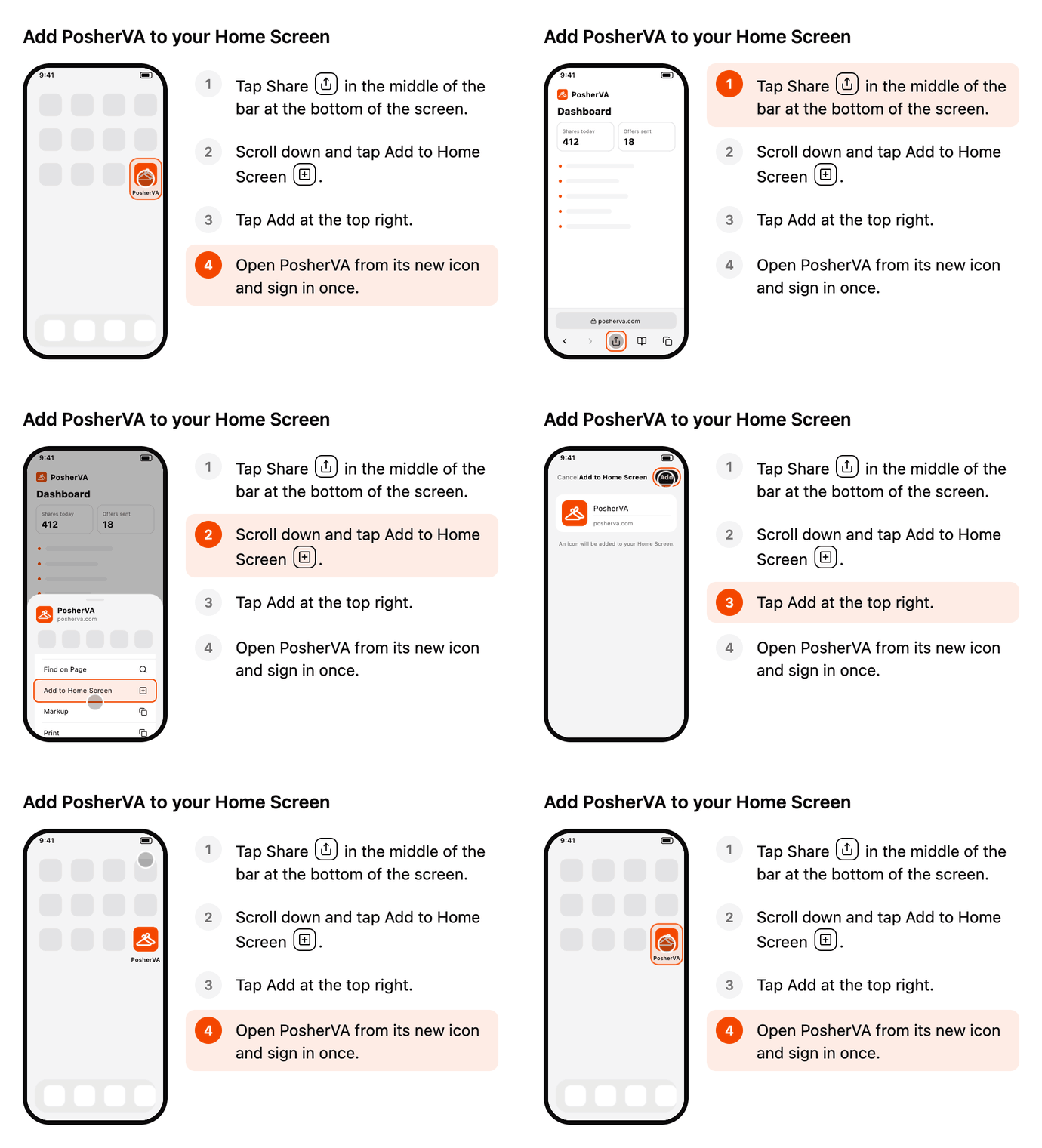
- Tap Share (the square with an arrow) in the middle of the bar at the bottom of the screen.
- Scroll down and tap Add to Home Screen.
- Tap Add at the top right.
- Open PosherVA from its new icon and sign in once.
No bar at the bottom? Tap the bottom edge of the screen and it comes back.
iPhone (Chrome)
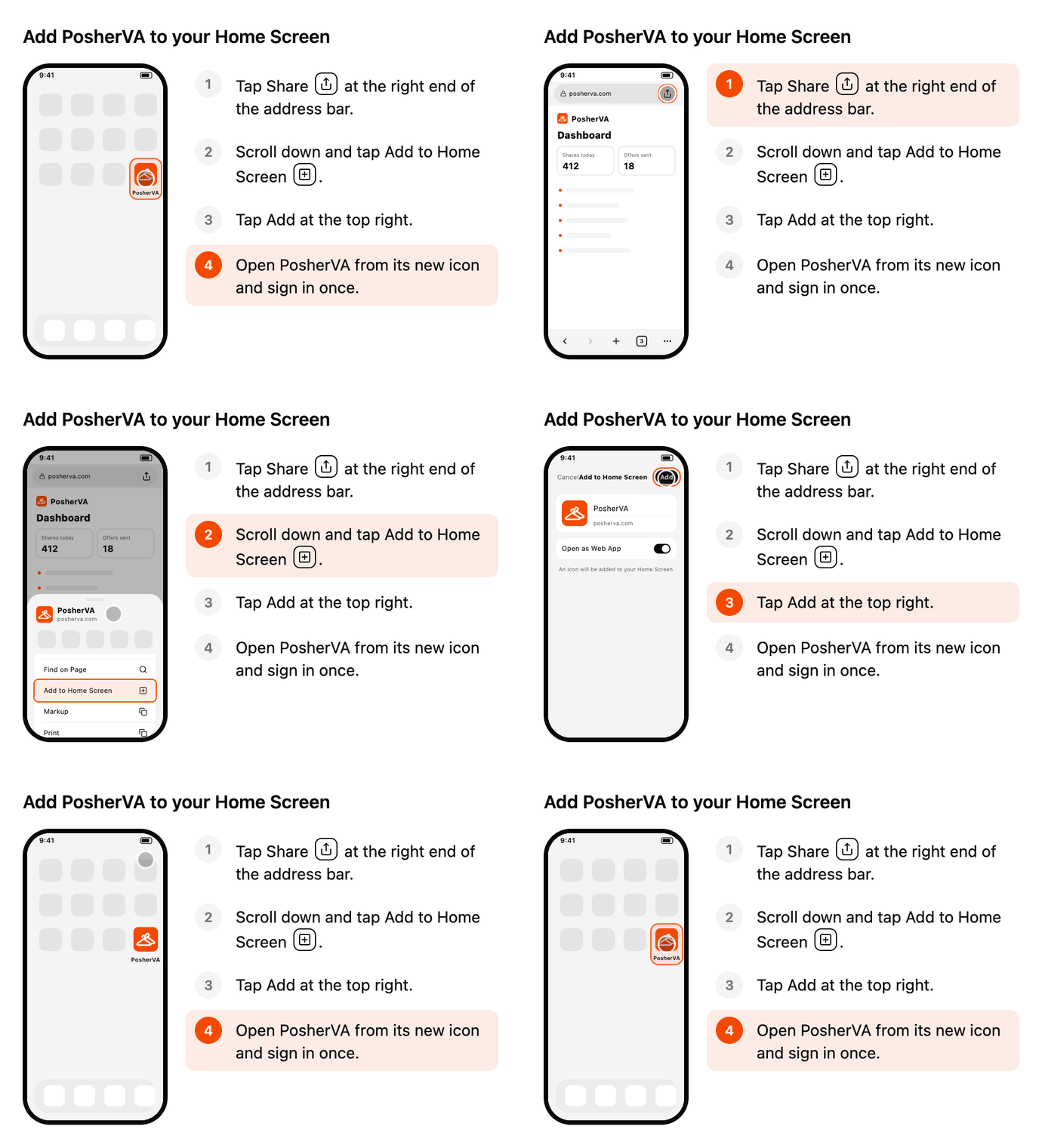
- Tap Share (the square with an arrow) at the right end of the address bar.
- Scroll down and tap Add to Home Screen.
- Tap Add at the top right.
- Open PosherVA from its new icon and sign in once.
Moved the address bar to the bottom? Share is still at its right end.
Android (Chrome)
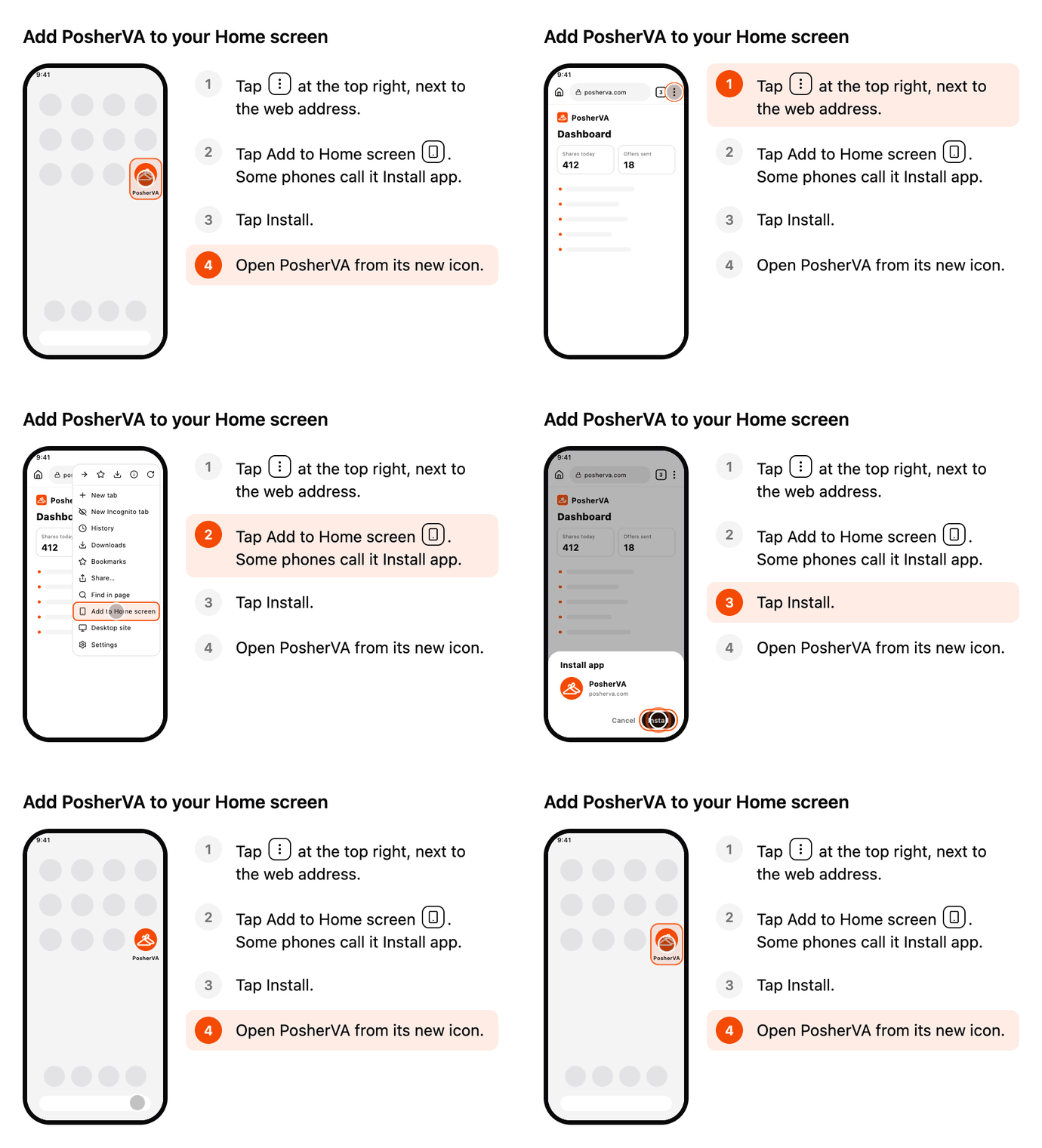
- Tap the ⋮ button (three dots) at the top right, next to the web address.
- Tap Add to Home screen. Some phones call it Install app.
- Tap Install.
- Open PosherVA from its new icon.
Samsung Internet
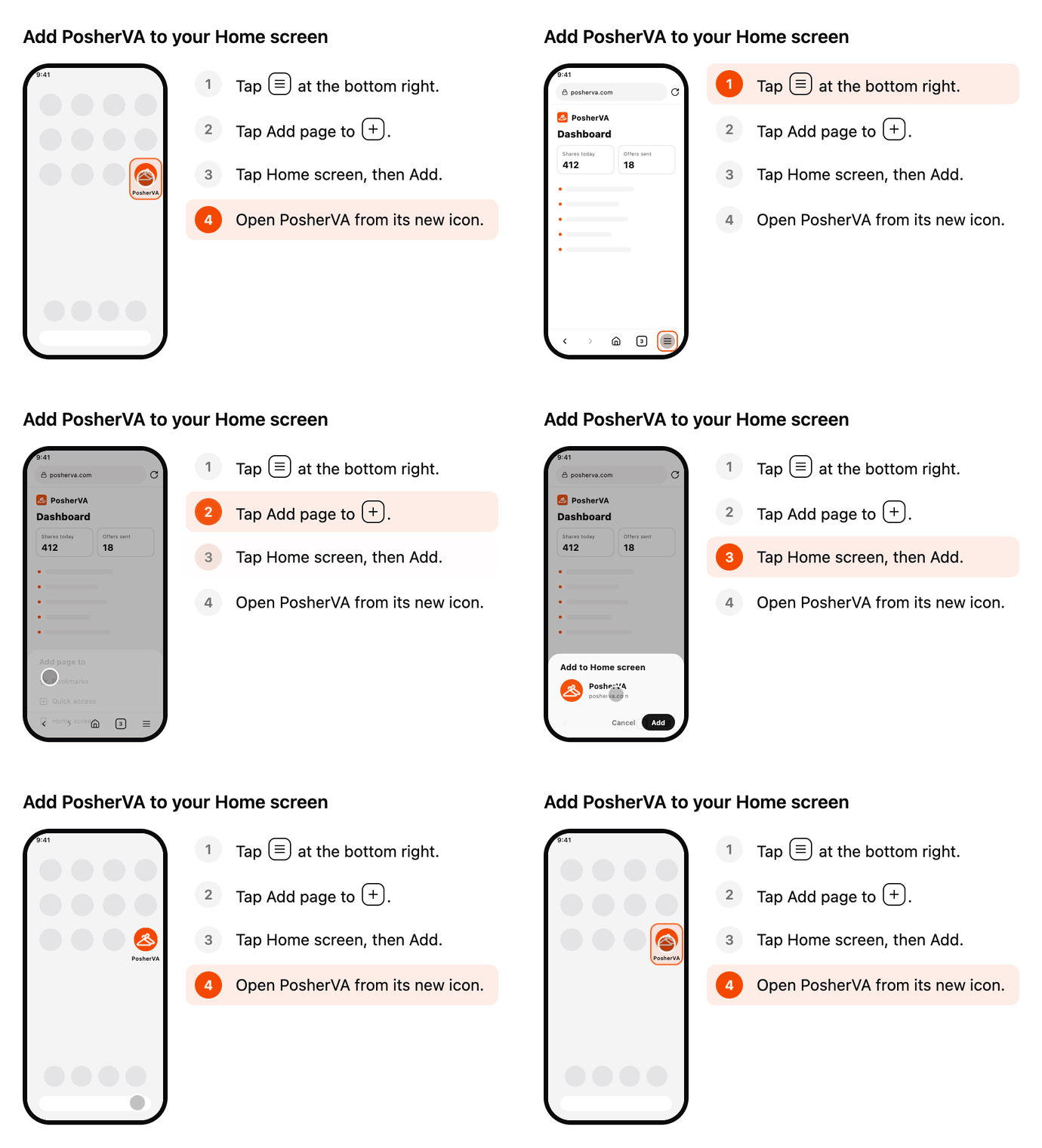
- Tap the ☰ button (three lines) at the bottom right.
- Tap Add page to.
- Tap Home screen, then Add.
- Open PosherVA from its new icon.
iPad
- Tap Share (the square with an arrow) at the top right of Safari. Don't see it? Tap ••• first.
- Tap Add to Home Screen, then Add.
- Open PosherVA from its new icon and sign in once.
Something doesn't look right?
I opened PosherVA from an email, or from Facebook or Instagram. Those apps open links in a small browser of their own, and it can't add icons to your Home Screen. Tap ••• or the Share button in a corner of the screen, choose Open in Safari (or Open in Chrome / Open in browser), and follow the steps there.
I don't see "Install the app" in Account. You're probably already in the PosherVA app you added: the button hides itself there. Look for the PosherVA icon on your Home Screen.
The new icon asks me to sign in. That's normal on an iPhone. Type your email, tap Email me a code, and enter the code from the email. It remembers you after that.
I can't find the button in my browser. Open cloud.posherva.com in Safari on an iPhone, or in Chrome on an Android phone, and follow the steps for it above.
Is there a PosherVA app in the App Store or Google Play?
Not yet. We're working on one, and we'll let you know when it's ready. Until then, the icon on your Home Screen opens the same PosherVA you see in your phone's browser.
Need a hand? Write to us at help@posherva.com or in chat, and tell us which phone you have. We'll walk you through it.
Updated on: 11/20/2026
Thank you!