Find and remove duplicate listings
Find and remove duplicate listings
Find duplicates looks through your closet for listings you've posted more than once. It shows them to you in groups. You choose which copies go, and PosherVA deletes them from Poshmark for you.
Nothing is picked or deleted on its own. You see every listing, with its photo, before anything is deleted.
It's on the My Closet page, and it runs on our servers. You can close the page while it works.
What counts as a copy
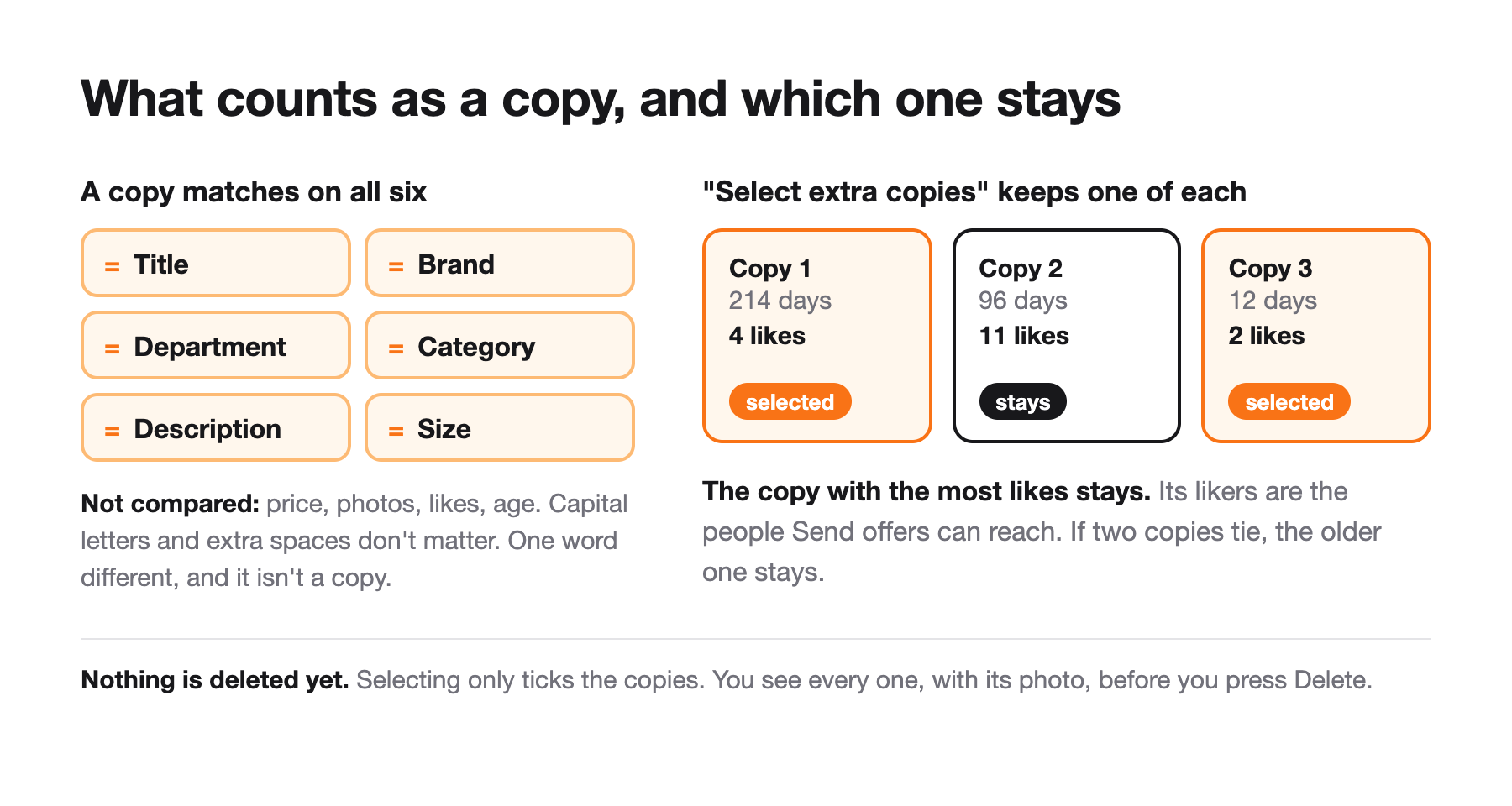
Two listings are copies when all six of these are the same:
- Title
- Brand
- Department
- Category
- Description
- Size
Capital letters and extra spaces don't matter. Everything else has to match exactly. If one word in the description is different, or the size is different, they aren't copies.
Price, photos, likes and how long a listing has been up aren't compared. A copy you've already marked down still counts as a copy.
Only listings that are for sale are checked. Sold and Not For Sale listings are left out.
Step 1: Find duplicates
- Go to My Closet. If you've never loaded your closet there, press Load closet first and wait for it to finish.
- Next to Refresh, press Find duplicates.

The check needs a fresh read of your whole closet. If your closet was loaded more than 30 minutes ago, PosherVA reads it again first. That usually takes under a minute, and longer for a big closet. You can leave the page while it runs.
If Poshmark doesn't send back your whole closet, you'll see Poshmark didn't return your whole closet this time. PosherVA won't guess from part of your closet. Press Check again: it usually works the second time.
Step 2: Look at the groups
Each group is one listing you've posted more than once. The top line tells you how many groups were found and how many listings were checked, for example 4 groups of copies among 412 listings.
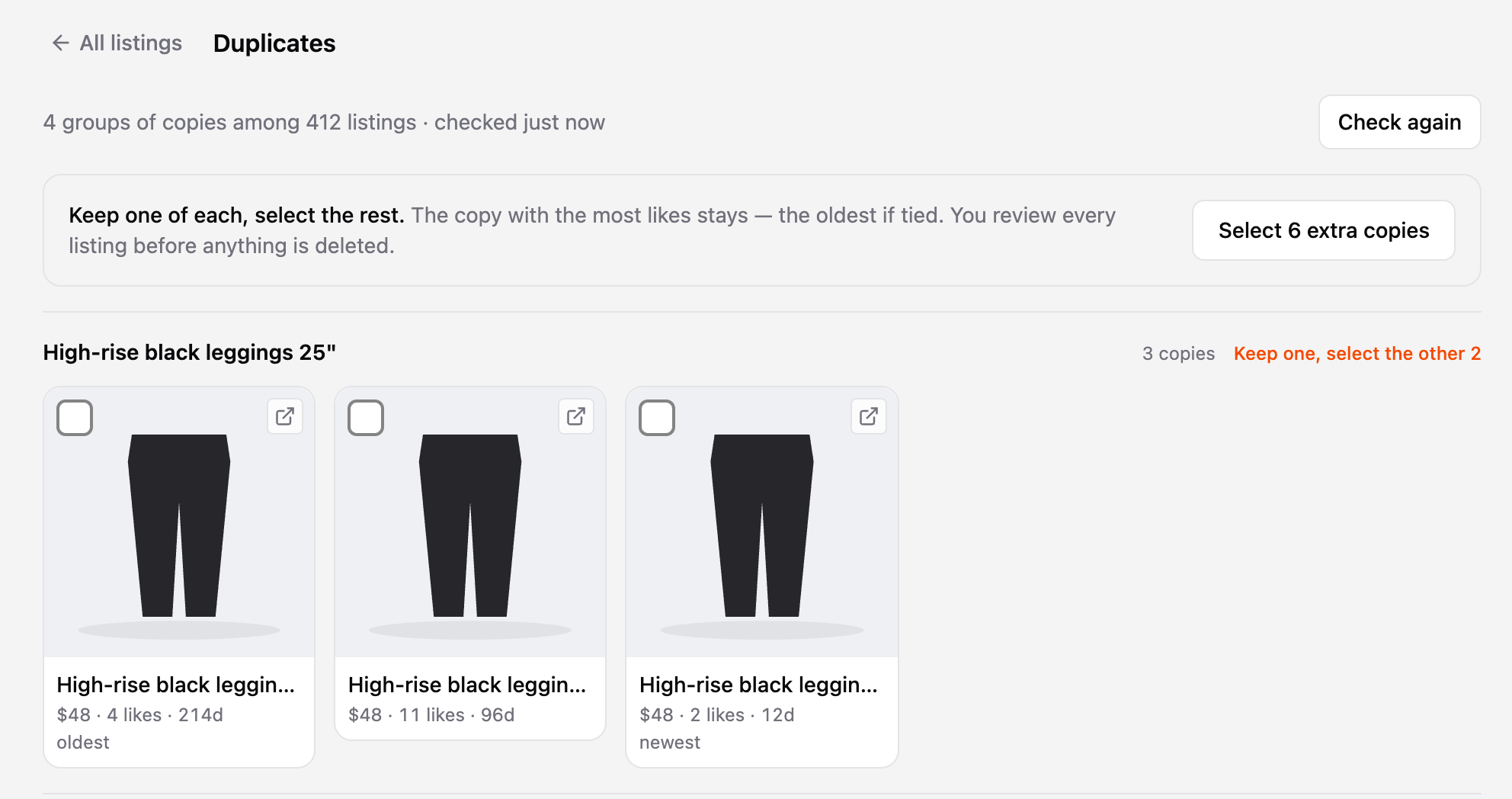
Inside a group, the oldest copy is first and the newest is last. Each card shows the price, the likes and how many days it's been listed. To see a listing on Poshmark, tap the small arrow in its top-right corner.
If no copies are found, you'll see No duplicates among your … listings.
Step 3: Pick the copies to remove
The quickest way is Select N extra copies. It keeps one copy of every group and selects all the others.
- The copy with the most likes stays. Deleting a listing deletes its likes too, and likers are the people your offers reach.
- If two copies have the same number of likes, the older one stays.
The card that stays says stays. The selected ones get an orange tick, and the bar at the bottom shows how many are selected.
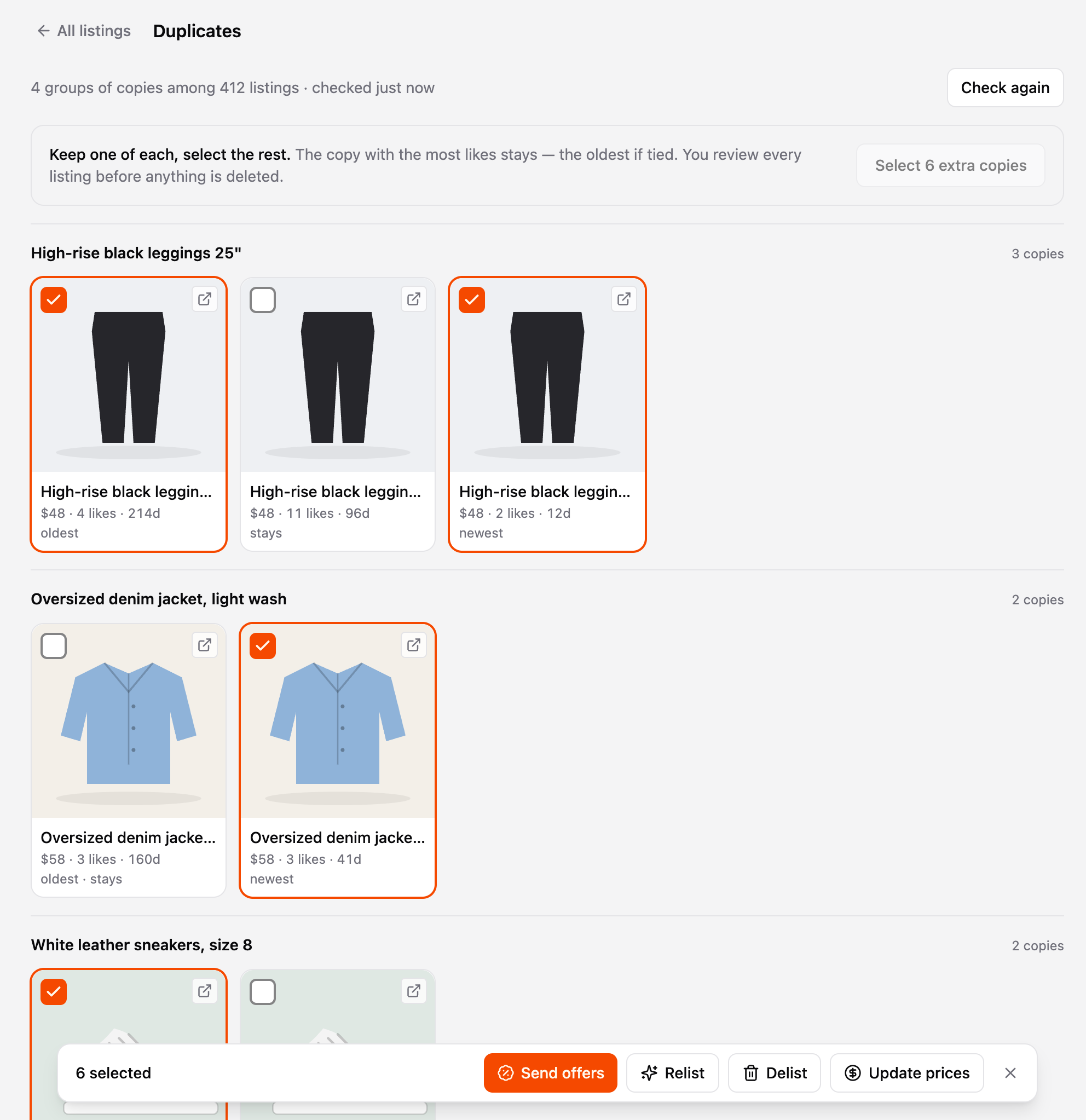
You can change any of it before you go on:
- Tap a card to select it or unselect it.
- To do one group only, press Keep one, select the other … next to that group's name.
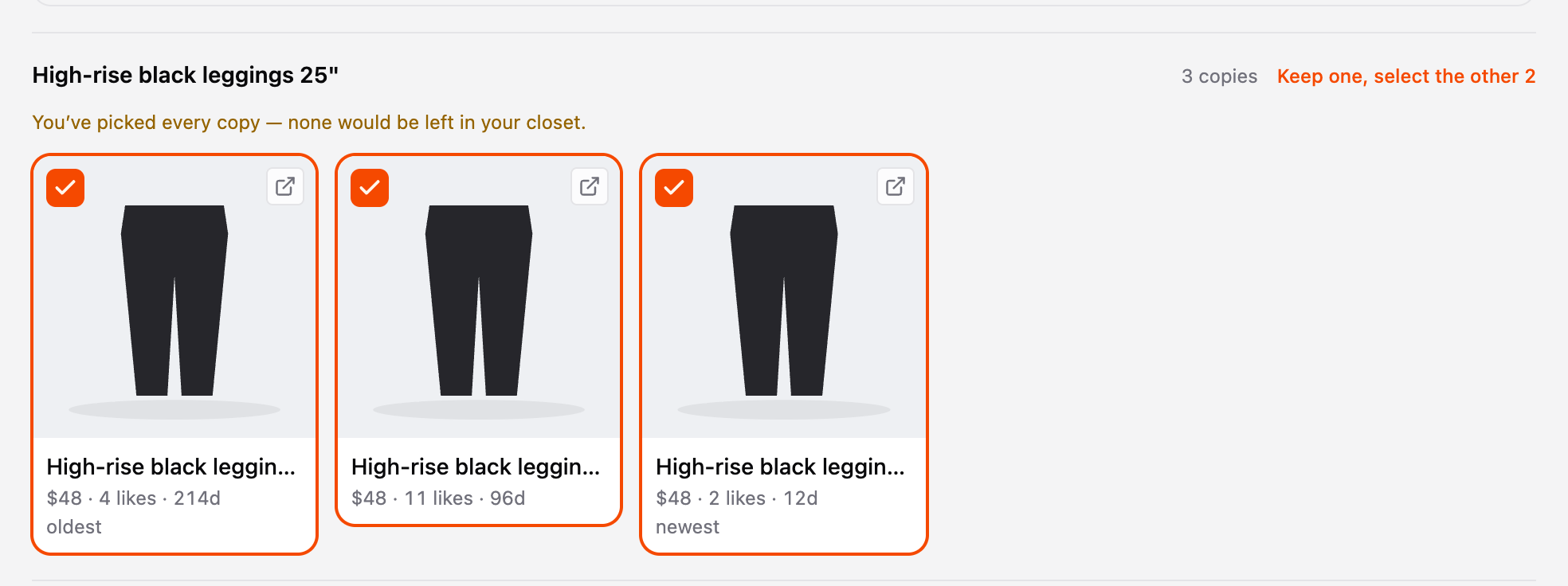
If you select every copy in a group, PosherVA warns you: You've picked every copy — none would be left in your closet. You can still go ahead, if you really want that listing gone.
Step 4: Delete them
- In the bar at the bottom, press Delist.
- The Delete from Poshmark window lists every listing that will be deleted, with its photo and price. Untick any you want to keep.
- Press Delete N listings.
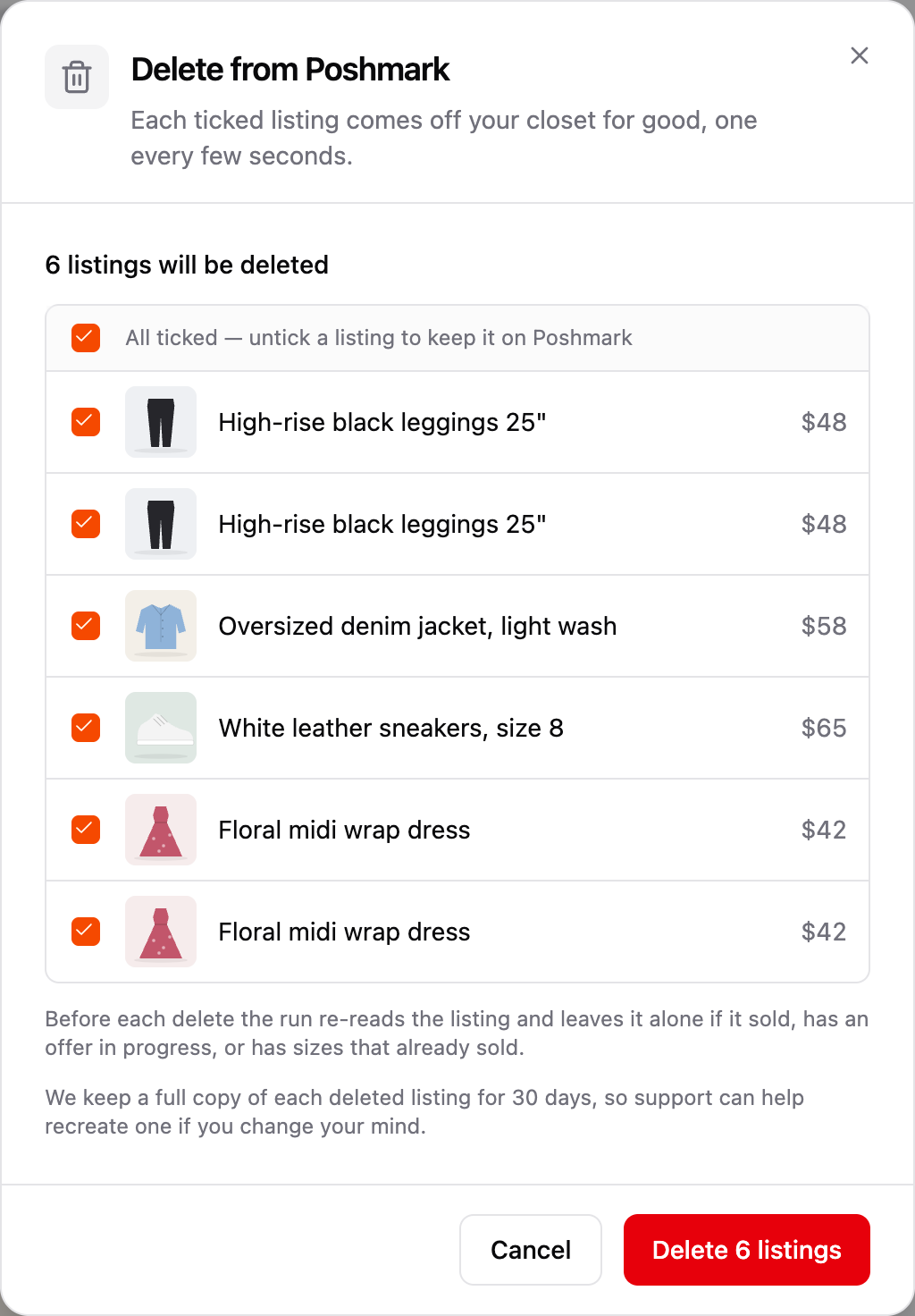
PosherVA deletes them one every few seconds. A strip at the top of My Closet shows how far it's got, for example Bulk delist · deleting 2 of 6. You can leave the page, or press Stop.
Before each delete, PosherVA checks the listing again on Poshmark. It leaves a listing alone if it has sold, has an offer in progress, or has sizes that already sold.
The bar has other actions too. You could Relist your extra copies, or Send offers to their likers, instead of deleting them. See My Closet: what you can do.
See what was deleted
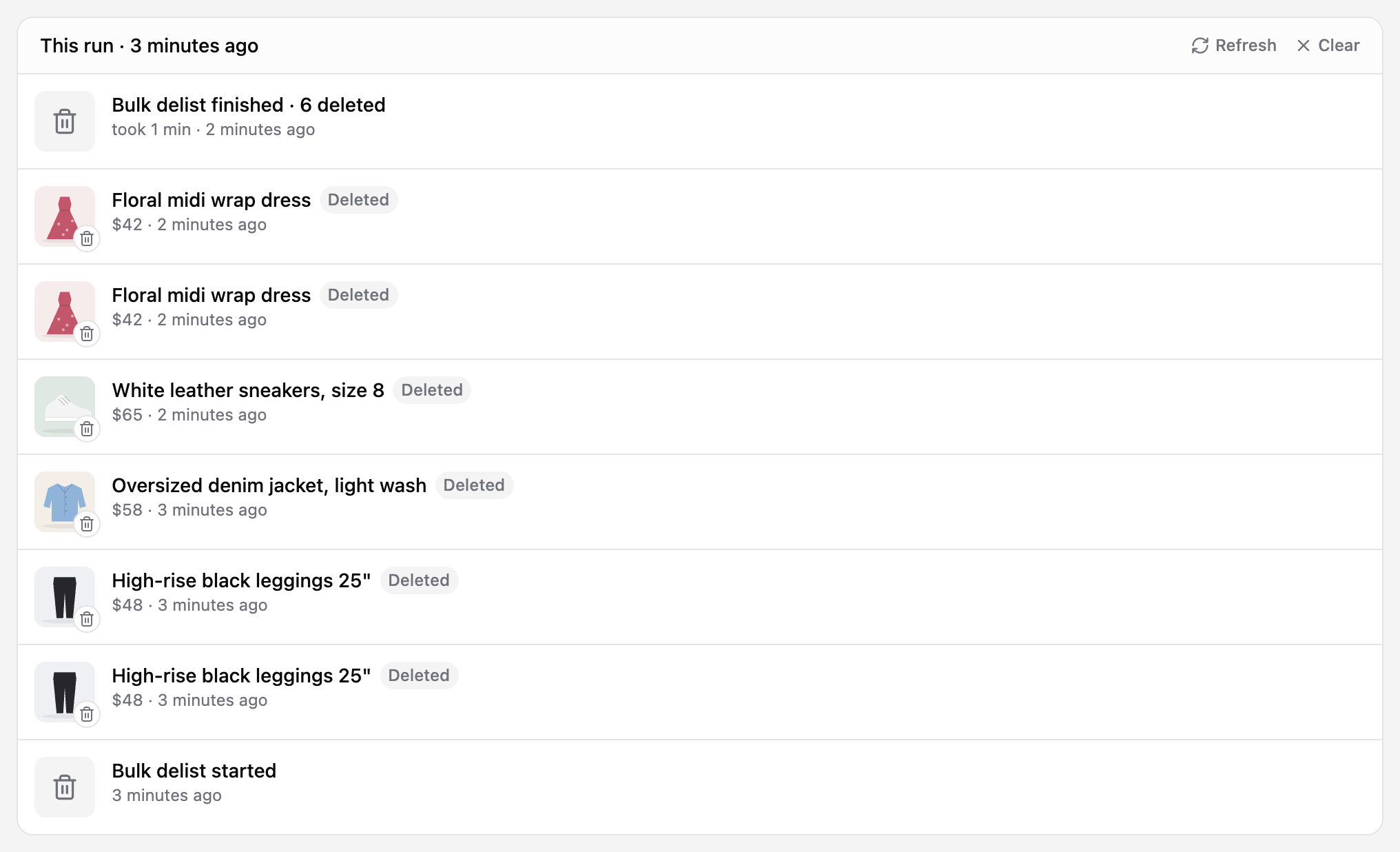
The Activity page shows the run, for example Bulk delist finished · 6 deleted. Press See details to see each listing that was deleted, or the reason one was left alone.
Good to know
Deleting can't be undone. We keep a full copy of each deleted listing for 30 days. If you change your mind, write to us and we'll help you recreate it.
A check is good for 30 minutes. After that the groups disappear and your selection is cleared, because a copy might have sold in the meantime. Press Check again for a fresh one.
One delete or relist at a time. If a relist or another delete is already running on that closet, the Delete window says so. Press Delete N when it finishes and PosherVA starts yours when the other one ends. If it can't start (for example, Poshmark stopped the run before it), nothing is deleted and the Activity page says why. You can cancel it from the strip at the top of My Closet until it starts.
Big selections. One delete run takes a limited number of listings. If you pick more, the window tells you before you press anything. Delete the rest in a second run.
Your plan has to be active. If your plan or trial has ended, My Closet is read-only and Find duplicates can't check your closet.
Deleting copies is safe for your account. Poshmark retired its penalty for removing listings in July 2026. See What You Need to Know About Poshmark's New Relisting Policy.
Questions
Does PosherVA delete duplicates automatically?
No. It only finds them. You choose what to select, and you check every listing before pressing Delete.
Why aren't two listings I think are the same in a group?
All six details have to match. A different size, a small change to the title or description, or a different category is enough to make them different listings. Not For Sale listings aren't checked at all.
I'd rather keep the newest copy. Can I?
Yes. After Select N extra copies, tap the newest copy to unselect it and tap the one marked stays to select it.
Can I relist the copy I keep?
Yes. When the delete has finished, go back to All listings, select the copy, and press Relist. If that copy is under 60 days old, the new listing won't reach the top of Just In; see Why relisted listings under 60 days don't reach the top of Just In.
I used "Delist & Deduplication" in the Chrome extension. What's different?
It runs on our servers, so your computer can be off. It keeps the copy with the most likes, not the newest. You see every listing with its photo before it's deleted. Cloud deletes copies only: there's no Not For Sale, Raise Price 2X or CSV export.
Need a hand? Write to us at help@posherva.com or in chat.
Updated on: 11/16/2026
Thank you!